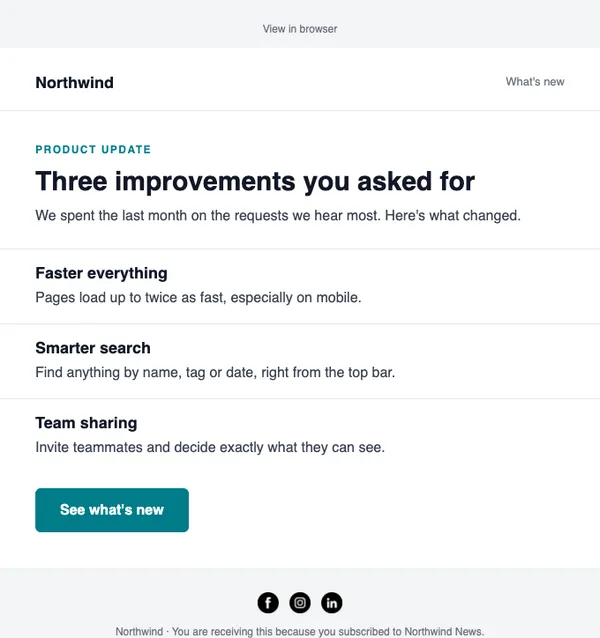
E-17 · Announcement
Product update
What changed, why it matters and how to try it.
- Good for feature releases
- Good for policy updates
- Good for company news
Free on every planYour brand appliedMobile-ready
How to use it
From template to sent in three steps
STEP 1
Open the catalog
In SendCoop, go to Campaigns → Campaign catalog and pick E-17. Your brand kit is applied.
STEP 2
Fill it in
Add products from your store, edit the text yourself, or give AI a one-line brief.
STEP 3
Check and send
Run the inbox score, send yourself a test, then send or schedule it.
Tips
Getting the most from a announcement email
When to send: When something changes that your customers need to know about.
Read about campaignsThree tips
- Say what changed in the first sentence.
- Explain why it matters to them, not to you.
- Link to one place with all the details.
Subject lines to try
- New: you can now schedule in your time zone
- An update to our pricing
- What’s new this month
AI can write more in your brand voice.
Keep browsing
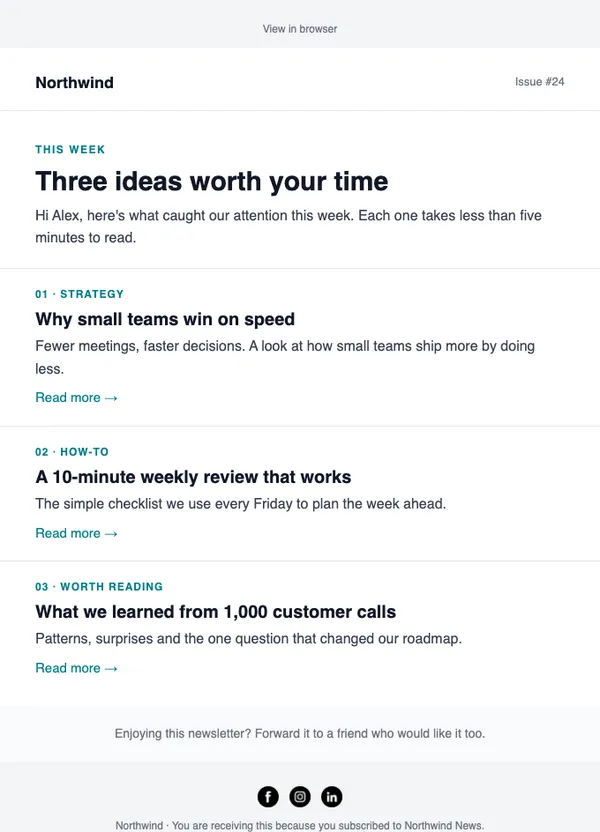
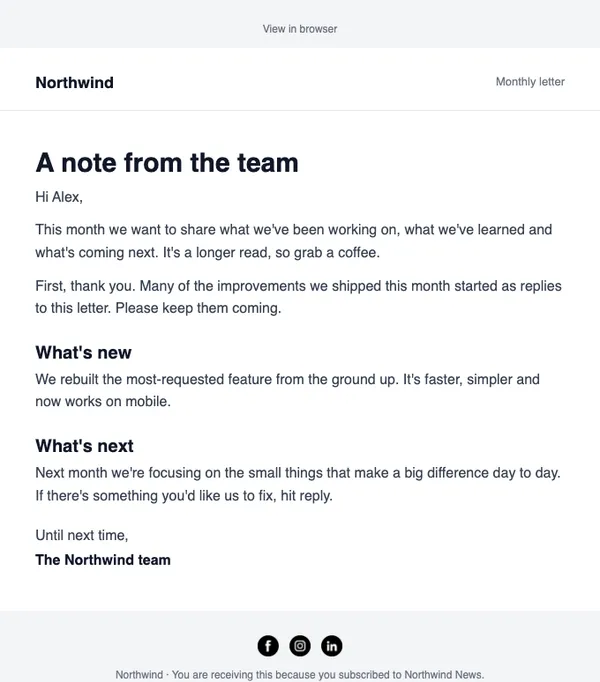
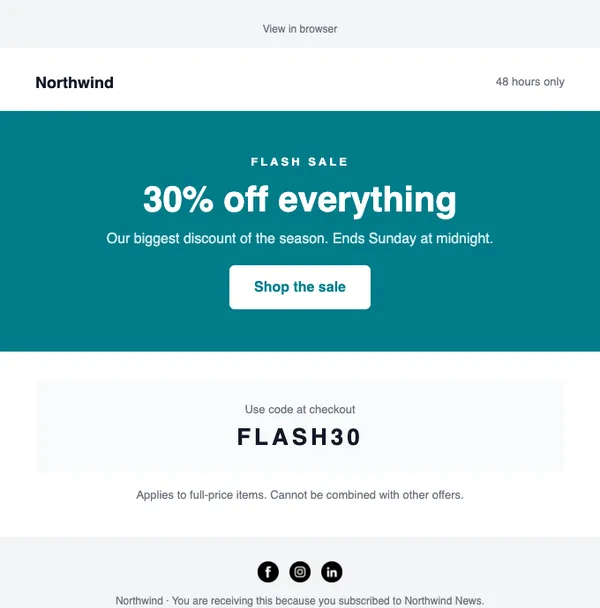
All templatesMore email templates
Use this template free
Every design is included on every plan, including the free one.